
This page is a guide. Enter account details, passwords and codes only in the official university portal.
Your university account is the shared sign-in identity for Ilam University services. New users register, then complete account security. Two-factor authentication is required for normal sign-in under the reported policy. Passkeys are an optional alternative.
Register for a university account
For new users:
- Enter your national ID and security code, then select the registration sign-in button. International users should use the passport-number option.
- Enter your first and last names in English.
- A profile photo is optional. JPEG is recommended; the stated maximum file size is 3 MB.
- Enter and verify both your personal email address and mobile number. You must have access to both.
- Complete registration. Under the reported process, the username and initial password appear on the final screen and are also sent to your registered mobile number. Keep them private and change the initial password after signing in.
Faculty and staff: Your accounts have already been created under the reported policy. Use the sign-in page instead of registering again, and review your account under “My details”.
Sign in and secure your account
- Open the sign-in page and enter your username, password and security code.
- Review your verified contact information. You do not need to enter completed registration details again.
- Enable Authenticator. Under the reported university policy, two-factor authentication is required for the normal sign-in route to university services.
- Generate recovery codes and store them securely.
- Optionally create a passkey; this is not mandatory.
Set up Authenticator
- Sign in to the university portal on your phone; open Two-factor verification setup from the profile picture.
- Enable Authenticator App, install Google Authenticator from your phone’s app store and select Done; go to the next step.
- Select Add account to app. If it fails, use Manual code entry. Enable automatic date and time.
- Enter the six-digit app code before it expires and confirm. The official guide identifies the button changing to Disable as the setup result.
- At the next login, choose Authenticator and enter a fresh app code.
If Authenticator, emergency codes and alternative methods are unavailable, contact support or visit in person for recovery. In-person location: Ghalamchi Building (ساختمان قلمچی); office hours: 08:00–13:00. For student visits, bring your student card and have access to the mobile number verified in the authentication portal. In-person requests are handled the same day. Visiting days remain unspecified. If that mobile number is unavailable, contact support before visiting; the alternative identity-check procedure has not been specified. Never send passwords, QR codes, setup keys or sign-in codes to support.
Public official sources checked on 24 October 2026. Reading a public page does not verify a completed authenticated workflow.
Generate, store and use recovery codes
In two-factor authentication settings, find “Emergency (recovery) codes” and select “Generate new codes”.
- The reported interface displays eight single-use codes and warns that they cannot be displayed again after closing the window. Follow the current portal message.
- Select Copy or Download. Store the codes securely, preferably separately from your phone, then confirm that you have saved them.
- If Authenticator is unavailable, enter your username and password, choose the recovery-code option on the two-factor screen, and enter one saved code.
- Each code becomes invalid after use. If codes have been disclosed, replace them in your account and confirm that the previous set is invalid.
Passkeys — optional
A passkey supports sign-in without typing your username and password or completing a separate second-factor step. Device verification may still be required. Setup is optional. Open passkey management.
- Select “Add key +”.
- Enter a descriptive label such as “Personal laptop”, then select OK. Do not put secrets in the label.
- Depending on your device and browser, choose a storage option in Windows Security or Google Password Manager. Select Continue; use Change or More options if needed.
- Verify your identity using the device PIN, fingerprint or face recognition.
- Return to the portal and confirm that the new passkey appears in the list.
Limit and removal: Check the current credential limit in the portal; no fixed limit has been independently confirmed here. Passkeys may sync between devices. If the portal reports a limit, contact support before deleting a key. To remove a key, select its trash icon and confirm. Always retain another working sign-in method.
Reported device and browser compatibility
The portal reports Android 9+ with Chrome/Edge/Firefox; Windows 10/11 with Chrome/Edge; iOS 16+ and macOS 13+ with Chrome/Safari/Edge/Firefox. Not every combination has been independently tested. The latest Chrome is recommended by the portal for creation. If creation fails, the reported portal advice is to temporarily disable VPN; this is not stated as necessary for later use.
Recover a forgotten password
The public recovery page currently offers Email and SMS. Enter account information only in the official portal. Official source
Recover by email
- Open the official recovery page and select Email.
- Enter your account email and the image security code, then select Confirm.
- Follow the portal’s response and next steps. Actual email delivery was not tested.
Recover by SMS
- Select SMS on the official recovery page.
- Enter an 11-digit mobile number beginning with zero and the image security code, then select Confirm.
- Follow the portal’s response and next steps. Actual SMS delivery was not tested.
Security question and Quick recovery were not present on the current public page and are not recommended as active routes. Code validity, attempt limits, verified contact requirements and password rules after verification still require confirmation from the account administrator.
Public official sources checked on 24 October 2026. Reading a public page does not verify a completed authenticated workflow.
Recover Authenticator access
If Authenticator or your usual verification method is unavailable and you previously saved emergency codes, use the emergency-code field on the Two-factor verification page.
- Find one saved emergency code that you have not used.
- Enter it in the field showing XXXX-XXXX and follow the portal’s messages.
Each emergency code is single-use and becomes permanently invalid after use. Do not reuse a consumed code.
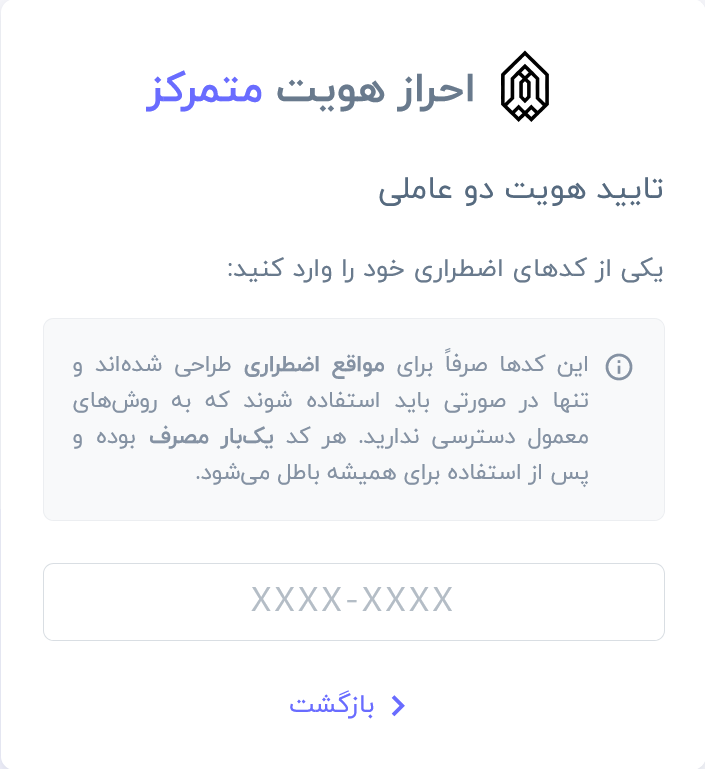
This is an alternative emergency sign-in step. The screenshot does not document moving Authenticator to a new phone or resetting it.
What if I have no emergency code or alternative method?
If Authenticator, emergency codes and all other verification methods are unavailable, call support at 08459241555 or visit in person for recovery. In-person location: Ghalamchi Building (ساختمان قلمچی); office hours: 08:00–13:00. For student visits, bring your student card and have access to the mobile number verified in the authentication portal. In-person requests are handled the same day. Visiting days remain unspecified. If that mobile number is unavailable, contact support before visiting; the alternative identity-check procedure has not been specified.
If you can access the email verified in the authentication portal, submitting a ticket through that email is another support route. If it is unavailable, use telephone support or visit in person. In-person requests are handled the same day; tickets and telephone calls are answered during office hours. These response hours do not promise an immediate answer or same-day ticket resolution.
Never send passwords, emergency codes, QR codes or sign-in codes to support or anyone else.
University IT support
Ask the general IT Center to refer your account recovery issue to the responsible unit.
- Email: itc@ilam.ac.ir
- Phone: +98 84 5924 1555
These contacts are quoted from the IT Center page. Response hours and a dedicated account recovery route have not been independently confirmed. Never send passwords, QR codes or recovery codes.
Forgotten university ID or password: My Government sign-in
The official guide introduces this option for existing university ID holders, including current students, graduates, staff and faculty. It does not create a new university account.
- On the university login page, select My Government under Other sign-in methods.
- Enter your mobile number and the security code on the page that opens.
- Enter the SMS verification code there and continue until you return to the university portal.
My Government sign-in provides the equivalent assurance of SMS MFA. It can be used only for systems that do not require Authenticator; it does not replace Authenticator where that method is mandatory. A valid mobile number and SMS reception are required, and service permissions still apply. The alternative route specifically for international users remains unconfirmed.
The assurance-level clarification was supplied for this guide on 24 October 2026; authenticated sign-in was not tested.
Official source · Forgotten university ID or password: My Government sign-in
Public official sources checked on 24 October 2026. Reading a public page does not verify a completed authenticated workflow.
Set up Authenticator using the official mobile guide
If Authenticator, emergency codes and alternative methods are unavailable, contact support or visit in person for recovery. In-person location: Ghalamchi Building (ساختمان قلمچی); office hours: 08:00–13:00. For student visits, bring your student card and have access to the mobile number verified in the authentication portal. In-person requests are handled the same day. Visiting days remain unspecified. If that mobile number is unavailable, contact support before visiting; the alternative identity-check procedure has not been specified. Never send passwords, QR codes, setup keys or sign-in codes to support.
Locked account or unavailable registered email and phone
For a locked account or recovery without access to your registered email and phone, call support at 08459241555 or visit Ghalamchi Building (ساختمان قلمچی), office hours 08:00–13:00. Student visits require a student card and access to the mobile number verified in the authentication portal. If that number is unavailable, contact support before visiting; the alternative identity-check procedure is not yet specified. In-person requests are handled the same day. Visiting days and documents for other roles remain unspecified.
If you can access the email verified in the authentication portal, submitting a ticket through that email is another support route. If it is unavailable, use telephone support or visit in person. In-person requests are handled the same day; tickets and telephone calls are answered during office hours. These response hours do not promise an immediate answer or same-day ticket resolution.
Still need help?
Prepare the service name, error message and steps you have tried. Do not send passwords or sign-in codes.
Sources and review
Last text review: 3 October 2026
Next planned review: 2 November 2026
University-specific policies in this guide, including two-factor requirements, recovery-code counts, passkey limits and recovery restrictions, are based on reported information. Follow current portal messages and IT confirmation.
Based on information supplied by the site owner. Private account settings, compatibility across all browsers and support details have not been independently verified.
Registration · Sign in · Password recovery · Two-factor settings · Passkeys
Use your browser’s Print option to print or save a PDF. To share, copy this page’s address.